Wardrobe System
The wardrobe system allows mixing and matching different sets of image generation tags. Any enabled wardrobes will be added to the image generation prompt along with the character's base appearance tags. Despite the name, you can also use wardrobes to inject information about scenery, mood, lighting, facial expression, and poses.
Editing Wardrobes
Click a character in chat to open their chat settings, or edit their character profile in the Character Editor to view and edit their wardrobes.
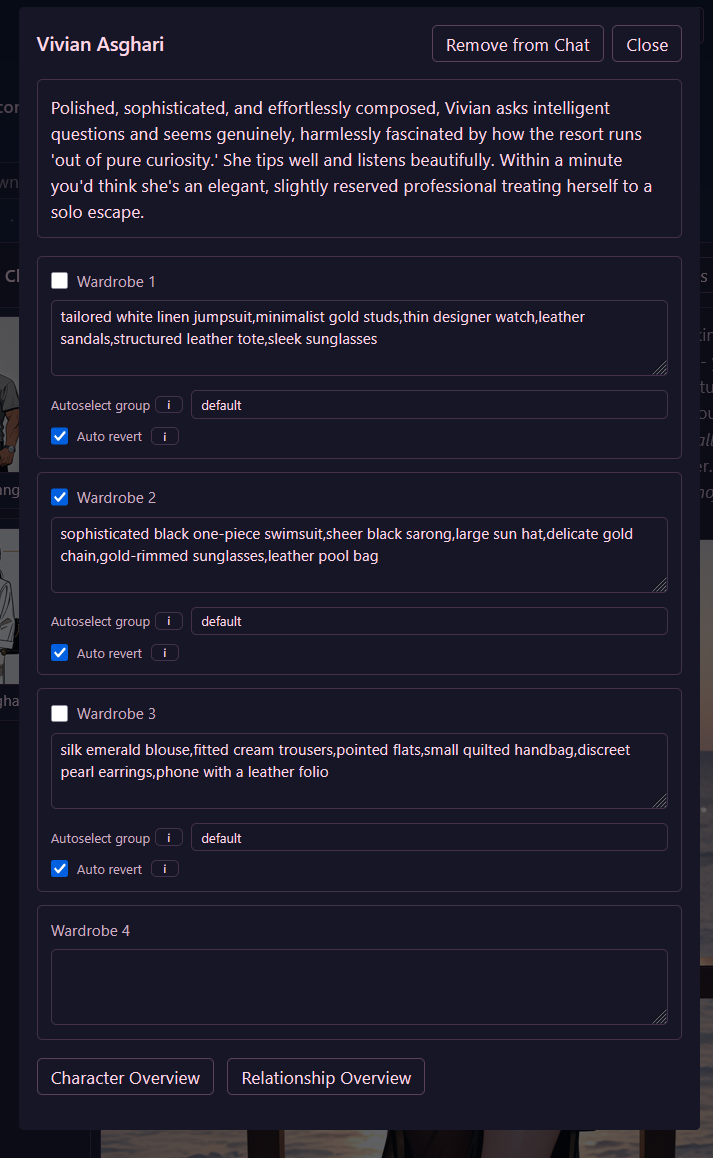
Each wardrobe entry has:
- Prompt text: The visual tags that will be concatenated into the image generation prompt when this wardrobe is enabled (e.g.
red dress, elegant, evening wear). - Enabled checkbox: Controls whether this wardrobe is currently active for image generation prompts.
- Autoselect group: An optional group identifier (e.g.
default,hat,expression). At the start of each in-world day, the system randomly selects and enables one wardrobe from each group, disabling all others in that group. This allows characters to spontaneously vary their appearance between days. - Tags: Comma-separated metadata tags (e.g.
casual_clothes, work_uniform, work_tie) that categorize the wardrobe entry. These tags are targeted by Map Zone Wardrobe Triggers to automatically enable or disable outfits when character move to specific map locations. - Auto revert: If enabled, any changes made to this wardrobe's enabled state during a chat will be reverted back to their pre-chat state once the conversation ends. This is useful for temporary states like facial expressions or location-specific attire.
Map Zone Wardrobe Triggers
You can attach wardrobe triggers to map zones so that characters automatically change clothing or appearance when a chat starts in that zone.
Open the Map Editor, navigate to the Zones tab, select a zone, and configure the Wardrobe Triggers field.
Trigger Commands
Wardrobe triggers are specified as a comma-separated list of commands:
disable:<tag>: Disables all wardrobes matching the specified tag.disable:*: Wildcard disable command that disables all wardrobes regardless of their tags. Note that partial wildcards (such asdisable:tag*) are not supported; the asterisk must stand alone.enable:<tag>: Enables all wardrobes matching the specified tag.enable_one:<tag>: Randomly enables one wardrobe matching the specified tag.<tag>(shorthand without a command prefix): Automatically defaults toenable:<tag>.
Example
disable:casual_clothes,enable:work_uniform,enable_one:work_tie
When a chat begins in that zone, for each participant:
- All wardrobes tagged
casual_clothesare disabled. - All wardrobes tagged
work_uniformare enabled. - One wardrobe tagged
work_tieis chosen at random and enabled.
Zone Specificity and Priority
If a character is simultaneously inside multiple map zones that define wardrobe triggers:
- Only the triggers from the most specific (smallest) zone containing the character's location are executed. Zone size is determined by how many locations belong to the zone (
locationIds.length). - If two matching zones have the exact same size, ties are broken alphabetically by zone name.
- Zones with empty wardrobe triggers are ignored during zone trigger selection.
Auto Revert Behavior
Before map zone wardrobe triggers execute, Yozakura snapshots the pre-conversation wardrobe states of all participants. When the conversation concludes, any wardrobe marked with Auto revert will automatically restore its pre-chat enabled state, while wardrobes without Auto revert will keep their new state.