Temporal Context
A Yozakura scenario has a temporal context: a scriptable piece of scenario-wide state that changes over time, shown in the header and injected into character prompts so the characters know what is going on around them. Date, time of day, and weather are the obvious examples, but you can model other time-driven scenario-wide context too. Seasons, holidays, an economy, a war, even a sports tournament playing out in the background can all live here.
Where it shows up
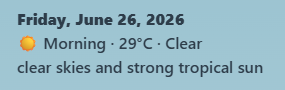
- The scenario header shows a short, formatted summary. This can include light HTML and emoji, so it might read something like a bold date on one line and "☀️ Afternoon · 31°C · Clear" on the next.
- Character prompts receive the same information as plain text. It is injected into each AI character's system prompt, so they are aware of the current temporal context, and can react to it or bring it up in conversation.
Choosing or writing a script
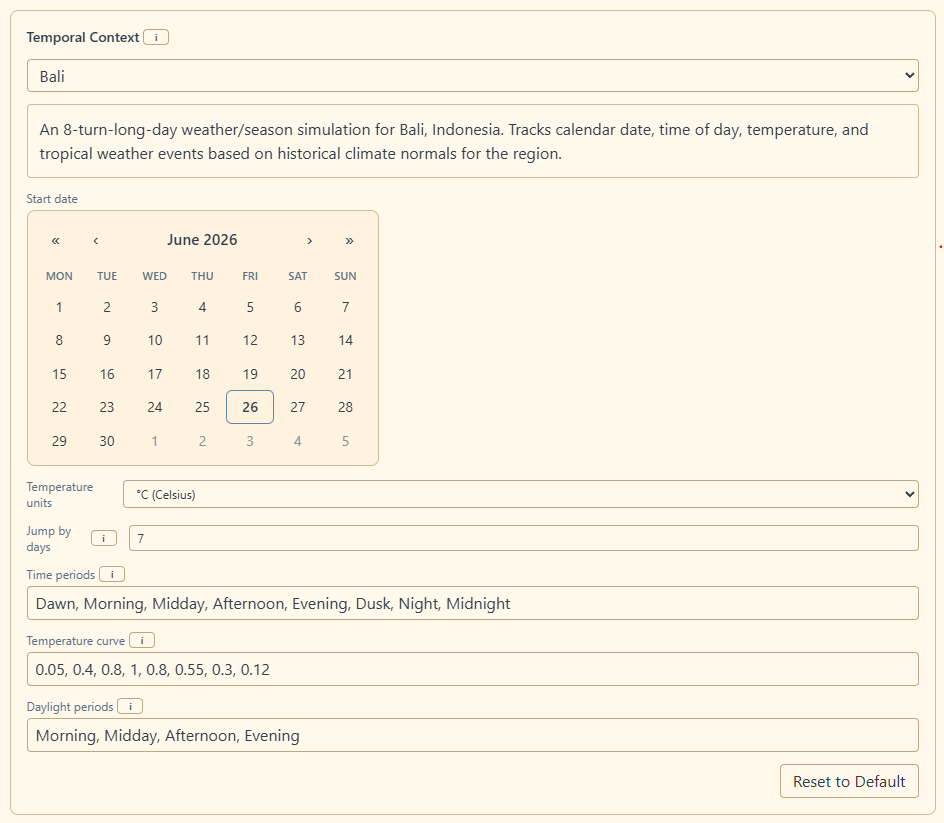
Open Scenario Settings and find the Temporal Context section. It comes with several built-in scripts. Each one simulates the date, time of day, temperature, season, and the occasional severe weather event for that place, based on historical climate normals. Pick whichever fits your setting, or none of them if you would rather script your own (see below).
The built-in scripts expose a few controls:
- Start date sets what in-world date the scenario begins on. Time moves forward from there as turns pass.
- Temperature units switches between Celsius and Fahrenheit.
- Jump by days jumps forward by the specified number of days at the end of each day. If this is set to the default 7, it means that, for example, the day after a Monday is the following week's Tuesday. This keeps the calendar moving at a good pace, while keeping individual days sufficiently long (8 turns by default).
- Time periods controls the number of and names of the time periods of each day. One time period is one turn.
- Temperature curve Customize how the temperature varies between the daily low and daily high across time periods.
- Daylight periods Specify which periods are considered daylight.
A Reset to Default button restores the controls to their starting values.
- (The St. Petersburg and Titan scripts don't have some of those above-listed options, because they have internal logic that wouldn't play nice with some of those options)
Writing your own
You can write your own script, or you can ask a modern AI model to write one for you and it will likely do a good job. No programming skills are required if you go down that path.
In the Temporal Context dropdown, choose + New custom script… to create one and open the editor.
Click the 🤖 AI Assistant Instructions 🗒️ button, copy the instructions it shows, and send them to your favorite frontier LLM with a description of what you want. It will write the script, which you can paste back into the editor. All of the built-in scripts were written by Claude Opus 4.8 Extra, with minor back and forth. I have also found Gemini Pro to do a great job, for free.
If you would like to write or modify a script by hand, you can refer to the built-in scripts here to see how they are structured. Or, give your AI assistant the doc and ask it to explain the structure to you.
Date and time
Temporal context advances with the scenario's turn number. The script decides how many turns make up a day and what to call each slice of it. The built-in scripts default to eight turns per day, with periods named Dawn, Morning, Midday, Afternoon, Evening, Dusk, Night, and Midnight. Custom scripts can have as many turns per day as you want, and you can name the time periods whatever you want. It is not strictly necessary to even have "days", you could have a scenario with a completely alien concept of time, or none at all.
A script can return a day index that ticks up once per in-world day. When it changes, characters re-roll their daily auto-selected wardrobes, so a character can end up dressed differently from one day to the next. Returning this is optional. Without it, the wardrobe auto-select feature will never trigger.
Start Date
The built-in scripts all set Start date to the Monday on or before you created the scenario, by default. This means turn 0 is always a Monday at dawn, unless you change Start date. If you plan to use the schedule feature and you want to have week-long schedules, it will usually make your life easier to use a Monday as your temporal context Start date (or Sunday, if you consider that the first day of the week) so that the schedule bar starts on the first day of the week.
How far you can take it
Because the script decides both what the header shows and what the characters are told, anything you can compute from the turn number can become part of the world. A few directions beyond weather:
- A calendar of holidays and festivals that characters acknowledge on the day.
- An economy: prices, a stock ticker, or a job market that drifts over the weeks.
- A slow-burning event: a war whose front line moves, an election campaign counting down to a result, an epidemic that rises and falls.
- Moon phases and tides.
As a concrete example, consider a sports tournament. A single script could hold a World Cup bracket, map ranges of turns to a fixture calendar, and decide each result with a seeded random outcome. The header could show the current match or the latest score with flag emoji, while the plain text tells characters who just got knocked out.
The right mental model is: the temporal context is the seam for any background story that should advance on its own while your characters live their lives in front of it.
If you would like a more interactive way to set global context, consider changing the Map Description in Scenario Settings, that is an easy place to write user-specified global context.