Schedule System
The schedule system allows you to define groups of characters and schedule where they are supposed to be at any given time. This can help enable a variety of different concepts such as: characters with jobs they go to on weekdays, characters with parents whose homes they visit on Sunday, characters who live in different towns from each other, and much more.
How it fits together
There are three pieces, and they build on each other:
- Zones are named sets of locations on the map, such as "The Cafe", "Downtown", or "Alice's House". A zone can be a single location or a whole cluster of them.
- Groups are named sets of characters, such as "Baristas" or "The Smith Family". A character can belong to more than one group.
- A schedule belongs to a group and controls which zone(s) its members should be in at any given time.
Step 1: Create zones
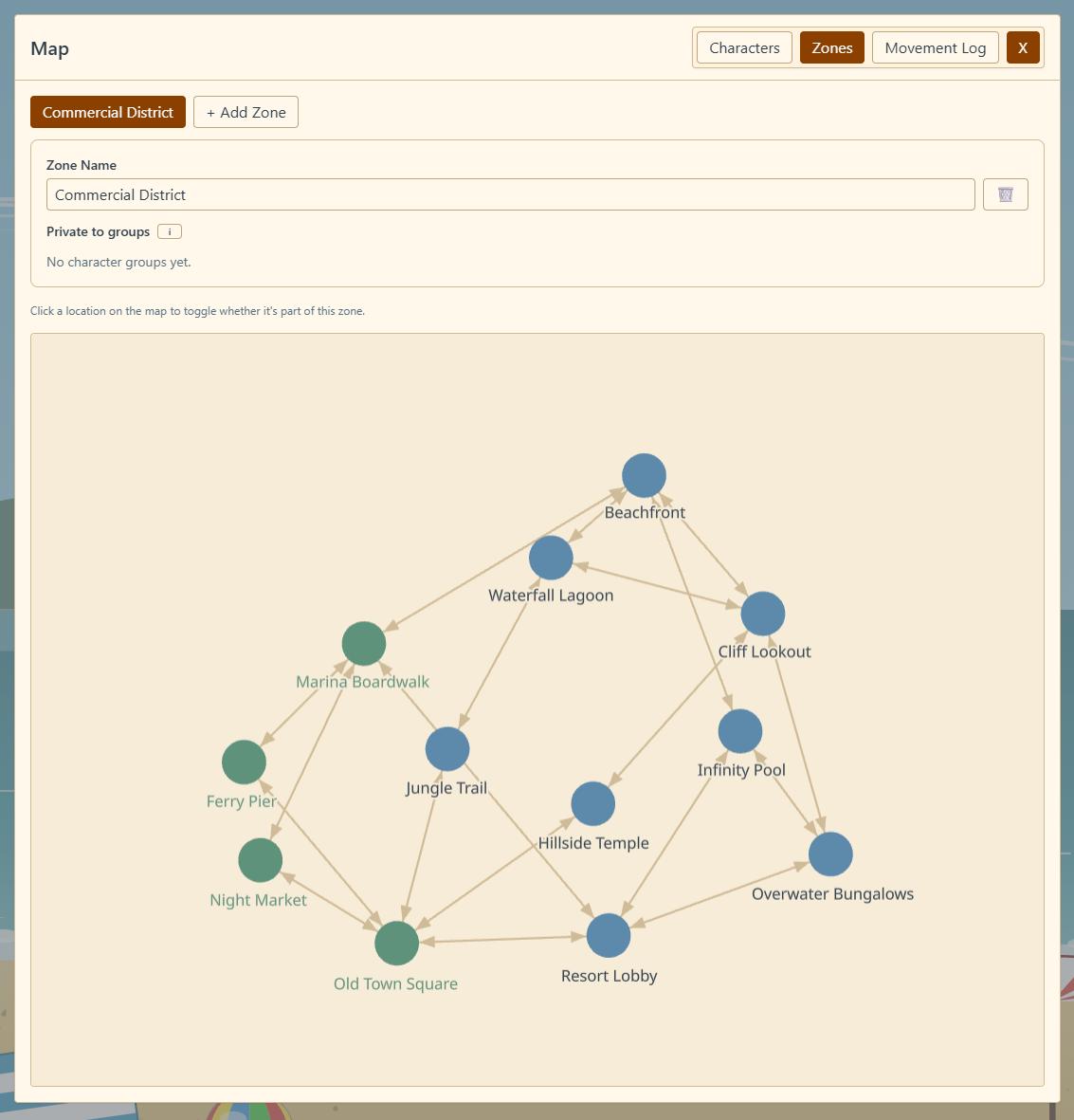
Open the map and switch to the Zones tab. Add a zone with the + Add Zone button, give it a name, and then click locations on the map to add them to the zone or remove them. Locations that belong to the selected zone are highlighted.
Step 2: Create a group and add members
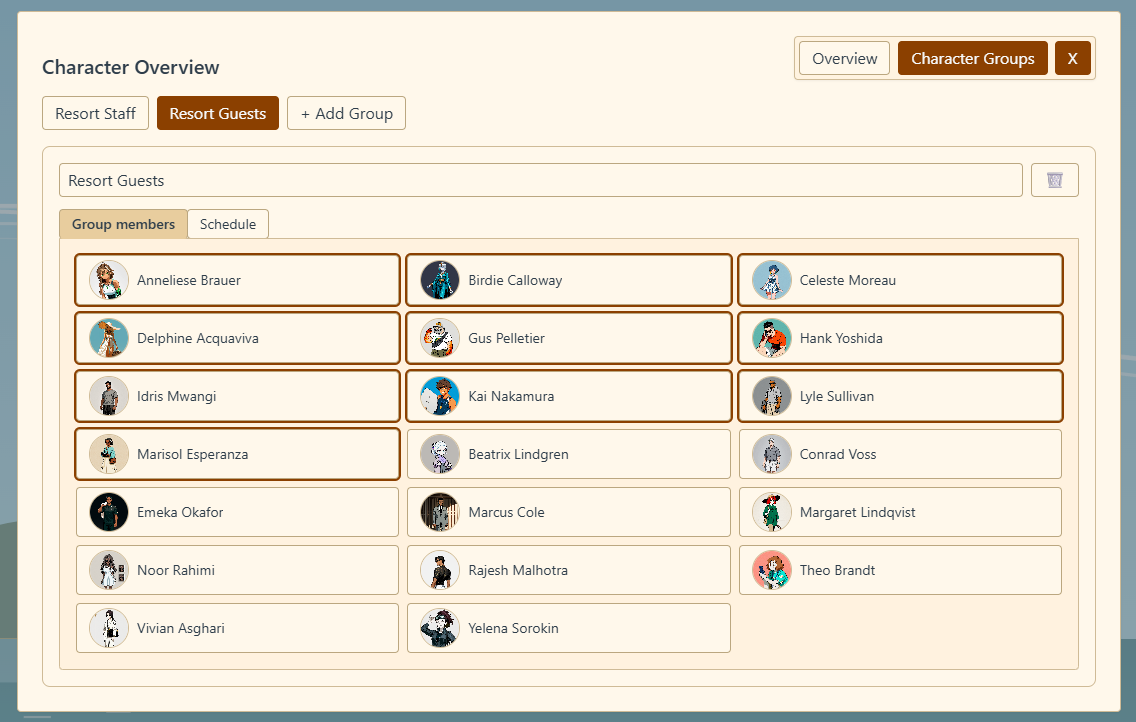
Open the Character Overview and switch to the Character Groups tab. Use + Add Group to create a group and give it a name. Then, on the Group members sub-tab, click the characters that should belong to the group. Click them again to remove.
Step 3: Build the schedule
With a group selected, switch to its Schedule sub-tab.
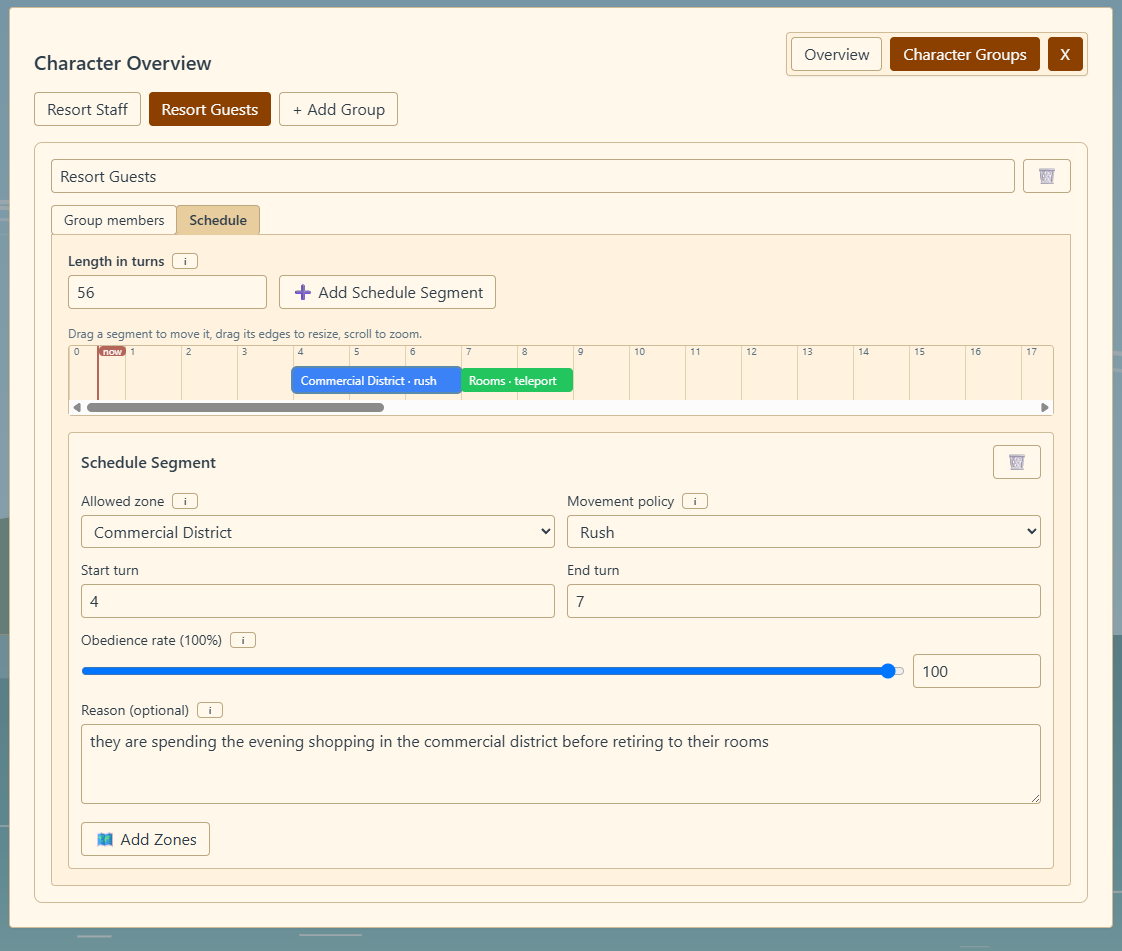
Schedules run on turns, the same unit of time the rest of the scenario advances on. By default a day is eight turns, so set Length in turns to 8 for a single-day schedule that repeats every day, or 56 (8 x 7) for a week-long schedule. Once the scenario passes the last turn, the schedule loops back to the beginning. (The number of turns per day can differ if you have changed the Temporal Context in Scenario Settings.)
The schedule is a timeline made of schedule segments. Each segment covers a span of turns and names one zone the group's members should be in during that span, along with how they should get there. To add a segment, click ➕ Add Schedule Segment or double-click an empty spot on the timeline. Drag a segment to move it, drag its edges to resize it, scroll to zoom in and out, and right-click a segment to remove it. A vertical now line marks where the current turn falls on the timeline.
Click a segment to edit its details:
- Allowed zone: the zone members should be in while this segment is active.
- Movement policy: how members travel to the zone (see below).
- Start turn and End turn: the span the segment covers (this is another way to control the segment size and location, in addition to clicking/dragging).
- Obedience rate: how often group members actually follow this schedule (see below).
- Reason (optional): free text explaining why the character is there.
Segments are allowed to overlap. When more than one of a character's segments is active at the same time, they may be in any of those zones. If any active segment uses teleport or jump, the character warps to one of those zones; otherwise they walk toward the nearest rush or casual zone. During any stretch of turns with no active schedule segment, group members move randomly.
Movement policies
Each schedule segment has a movement policy that controls how a member gets to the zone when the segment becomes active:
- Teleport: the character instantly warps to the zone, and still gets to act on the same turn.
- Jump: the character instantly warps to the zone, but warping uses up their turn.
- Rush: the character walks toward the zone one location at a time and never stops to start a conversation along the way. Other characters can still start conversations with them.
- Casual: the character walks toward the zone one location at a time, occasionally stopping to start conversations on the way, at the rate set in Behavior Settings. Characters moving casually will often arrive late to their destination.
Teleport and jump ignore the map's connectivity entirely. The character warps to any location within the target zone, chosen at random, no matter how far away it is — and even if there is no walkable path to it at all. This makes them well suited to zones that are meant to be disconnected from the rest of the map, such as a character's home in another town. Rush and casual walk along map connections, so if no path to the zone exists, the character simply can't get there and moves freely instead.
When teleport or jump would land the character in a private zone they aren't allowed to enter, the warp is blocked, just like walking in would be.
Arriving on time
Rush and casual characters try to start their journey early enough to reach the zone by the time they are scheduled to be there. But if you don't give them enough of a gap between schedule segments, they won't make it. For example if you schedule them to be in zone A, and then in zone B three turns later, but walking between zone A and B requires five turns, then they can't get to zone B on time.
Obedience rate
Each schedule segment has an obedience rate, from 0% to 100%, defaulting to 100%. It is the chance that a character actually respects the schedule on any given turn.
At 100% the segment is always honored. Lower it to add spontaneity: each turn, the segment rolls against its obedience rate, and if the roll fails the segment is ignored for that turn as if it weren't scheduled at all. With no other active segment to keep them in place, the character is then free to wander or stay put — which enables interactions like "I couldn't sleep, so I didn't go to bed." The roll is independent every turn, so a character with a 70% obedience rate will usually be where they're supposed to be, but will occasionally stray.
Obedience only affects AI-controlled movement. The move suggestions for the user character always reflect the schedule, since you decide whether to follow it.
The reason field
The optional Reason on a schedule segment is a short note completing the thought "They are here because…", for example "they work the morning shift here". While the schedule is keeping a character in that zone (or traveling towards it), the reason is added to their system prompt so they can act in character. The text injected into system prompts, by default, looks like "Alice is currently here because they work the morning shift here", or while she is still on her way, "Alice is currently moving towards the Cafe because they work the morning shift here". Leave it blank and no reason is injected, and the character won't be aware that they're moving intentionally.
Private zones
A zone can be marked private to groups. When editing a zone, select one or more groups under "Private to groups", and only members of those groups will be allowed to enter that zone. Private zones are marked with a 🔒 in the zone list.
This works alongside schedules. If a zone is private, it stays off-limits to everyone outside the listed groups, even if some other group's schedule would otherwise send them there. A character who belongs to any one of a private zone's groups is allowed in.
Schedules for the user
For AI-controlled characters, schedules are followed automatically according to the movement policy.
The user character is also supposed to follow their schedule, but isn't forced to. If your character belongs to a group with a schedule, the move buttons highlight where the schedule suggests you go, in the following conditions:
- If you're scheduled to be somewhere else with
teleport,jump, orrushpolicy, the suggested move button(s) are outlined in red (in the default UI theme). For teleport and jump policies, every destination in the target zone appears as a button, even ones that are far away or have no walkable path from where you are. - If you're scheduled to be somewhere else with
casualpolicy, the suggested move button(s) are outlined in yellow. - If you're already in your schedule zone, the buttons that will keep you there (including the wait button) get a magenta outline.
- Any private zones that you're not supposed to enter will have a lock icon.
You can ignore these suggestions if you wish to.
