Chat Features
Images on Demand
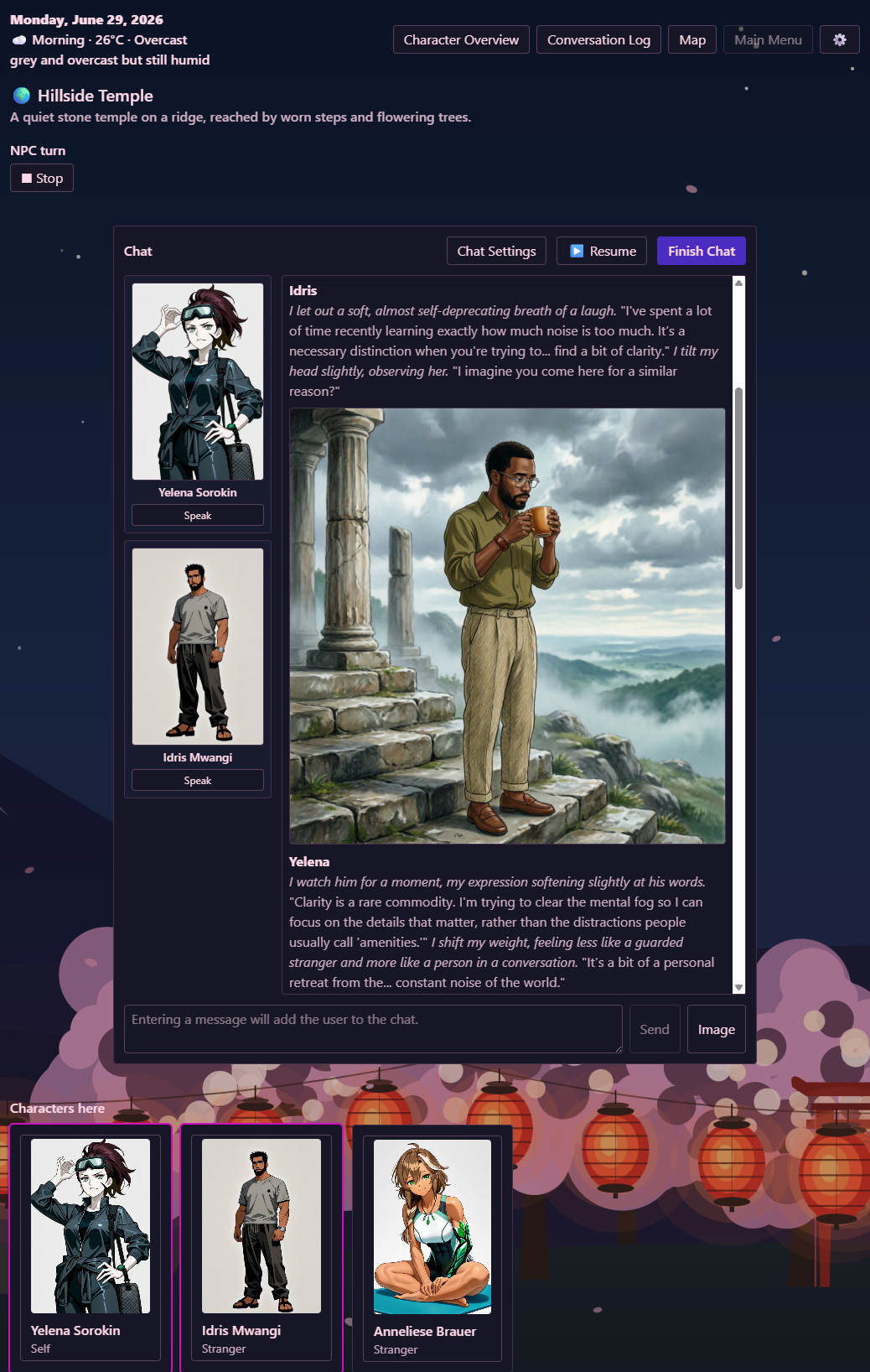
After setting up an image model, use the Image button to generate an image.
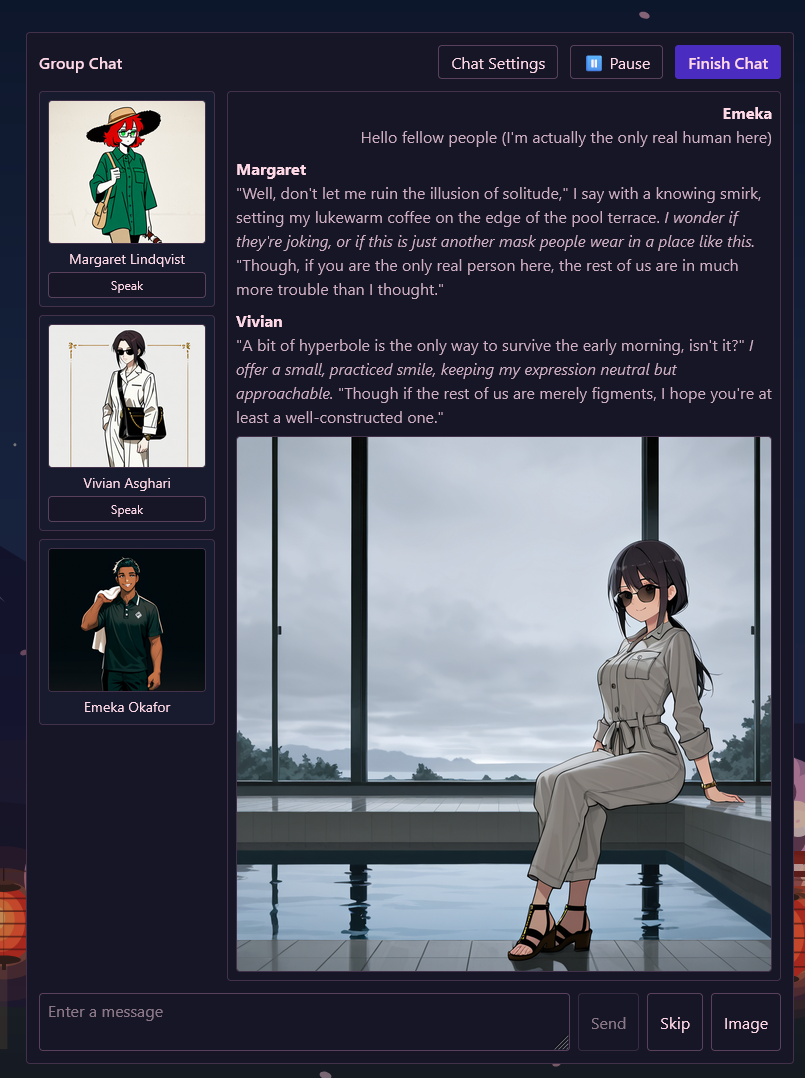
If you want to edit image prompts, you can enable the Edit image prompts before dispatch setting, though the system tends to be pretty good at generating relevant images on its own, and wardrobes are often a better way to influence image generation (more on that below).
Automatic Images
Turn up the Auto image rate setting in Image Generation settings to trigger image generation randomly as NPCs chat with each other.
Wardrobes
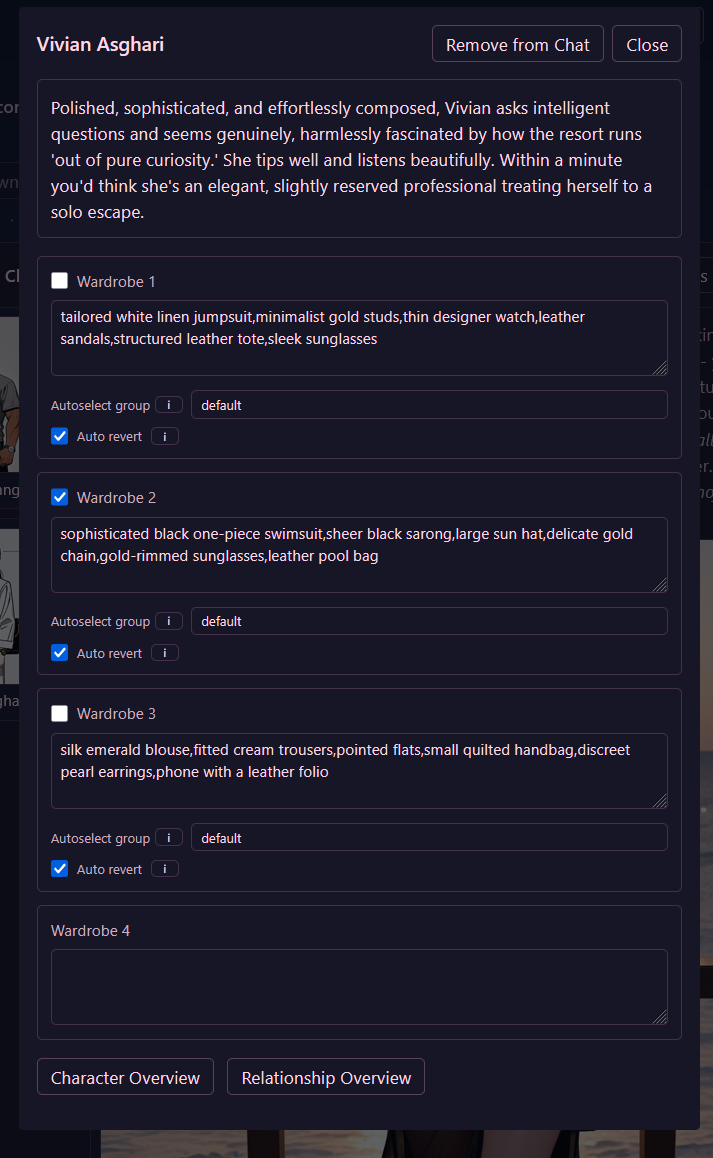
Click a character in chat to open their chat settings, including their wardrobes.
The wardrobe system allows mixing and matching different sets of image generation tags. Any enabled wardrobes will be added to the image generation prompt. Despite the name, you can also use this to inject information about scenery, mood, lighting, facial expression, etc.
Each day, the system automatically enables one wardrobe from each autoselect group, causing characters to dynamically change appearance on however many axes you want to configure.
Group chat
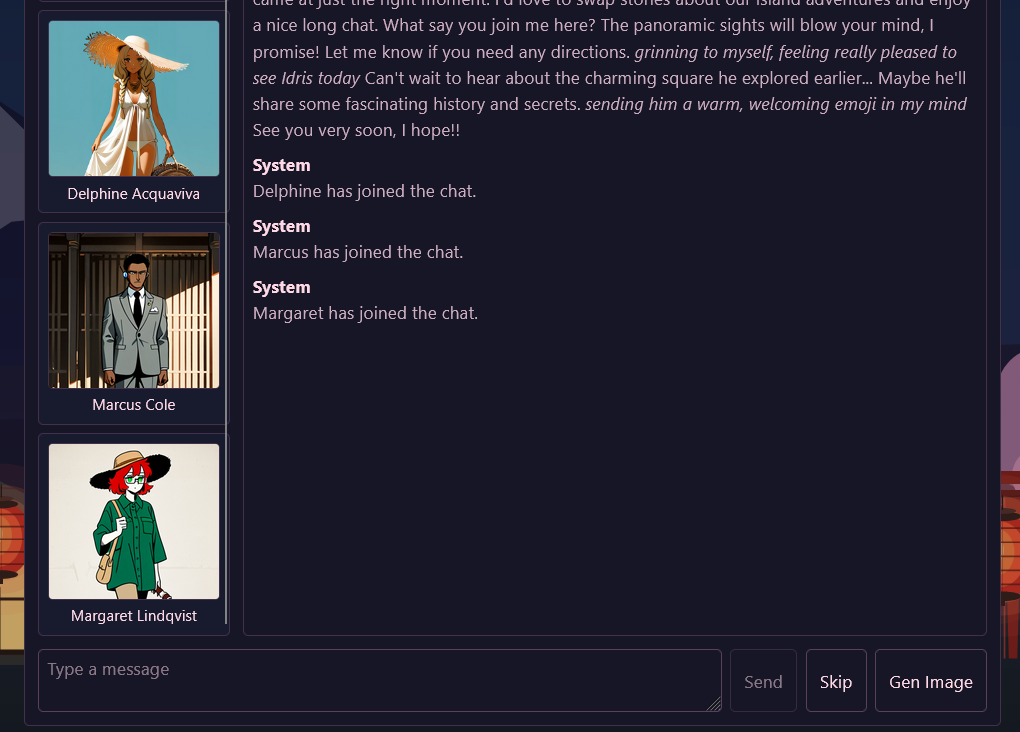
Click more characters from the "Characters here" section at the bottom to add them to the chat. Click them again to remove them. You can also add characters from other locations by finding them in the character overview and clicking their "chat with" button. Characters can be removed from the chat by clicking them again, or using the Remove from Chat button in the character settings.
Characters who only join a chat partway through can't see earlier messages, and those who leave partway through can't see later messages for purposes of memory generation.
Each character in a group chat updates their memories towards all other characters in the chat at the end (keep this in mind as it can require a lot of time and LLM calls for larger group chats).
Group Chat Speaker Selection Modes
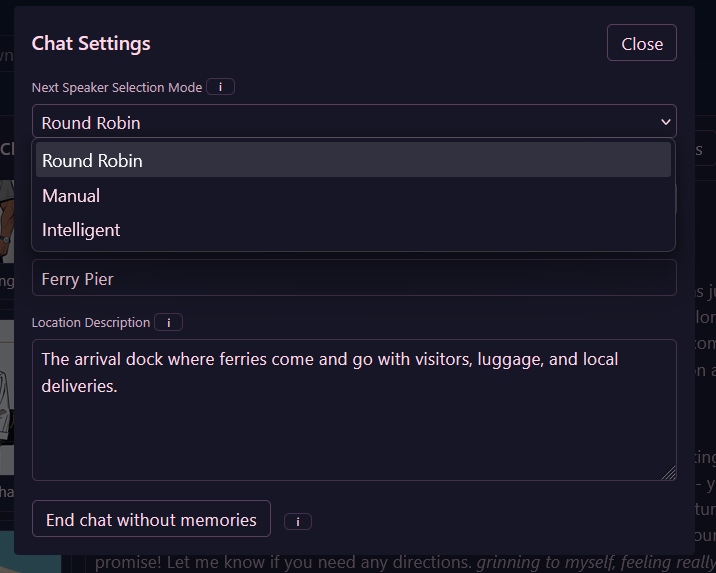
The speaker selection mode for group chats can be changed from the default "Round Robin" mode to "Intelligent" (asks your LLM to choose should speak next).
Temporary Locations
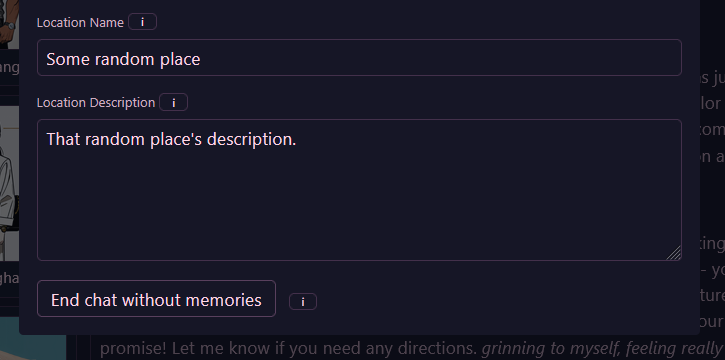
Change the location name and/or description in the chat settings to create a temporary location. All participants of the chat will now see themselves as being in that location.
You can also move characters to non-temporary locations via the Character Overview any time (including during a chat).
Edit Messages
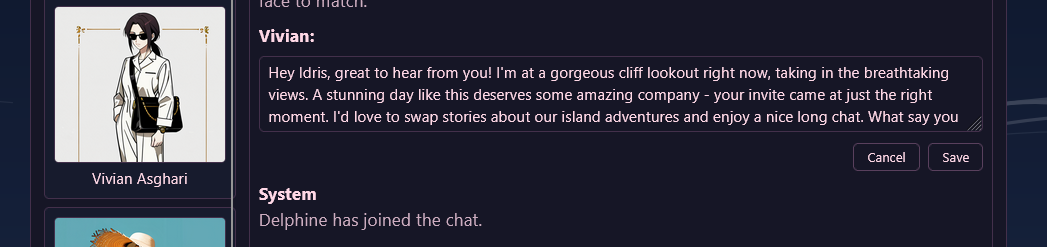
Edit, delete, or retry messages by hovering over them and using the button bar that appears.
Remote Chat
Characters in different locations can still chat via remote chat. By default this happens at a lower rate than in-person chats. The default prompts contextualize remote chat as "text messaging", but you can edit the prompts to make it telepathy or pigeons or whatever.
Conversation Log
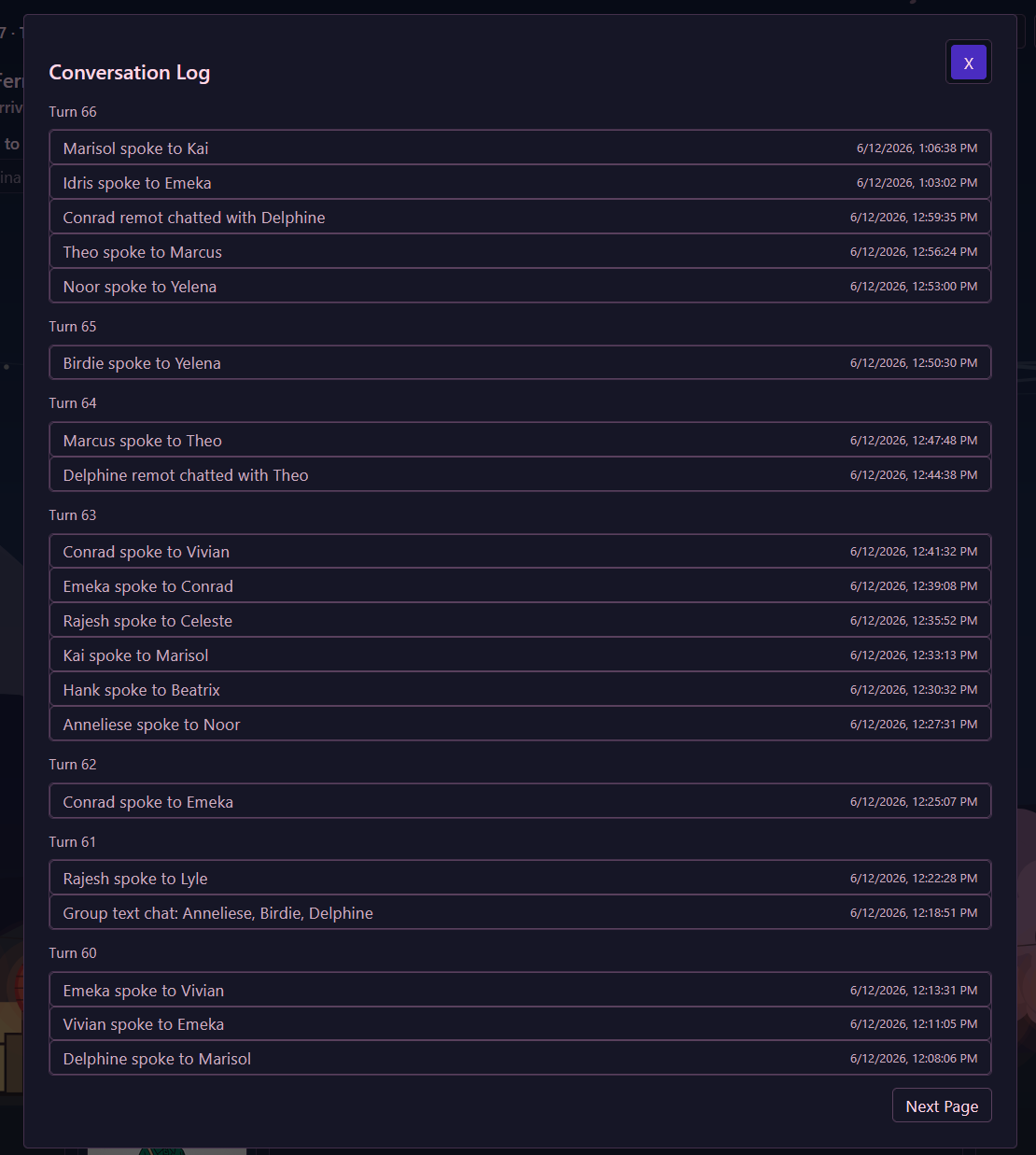
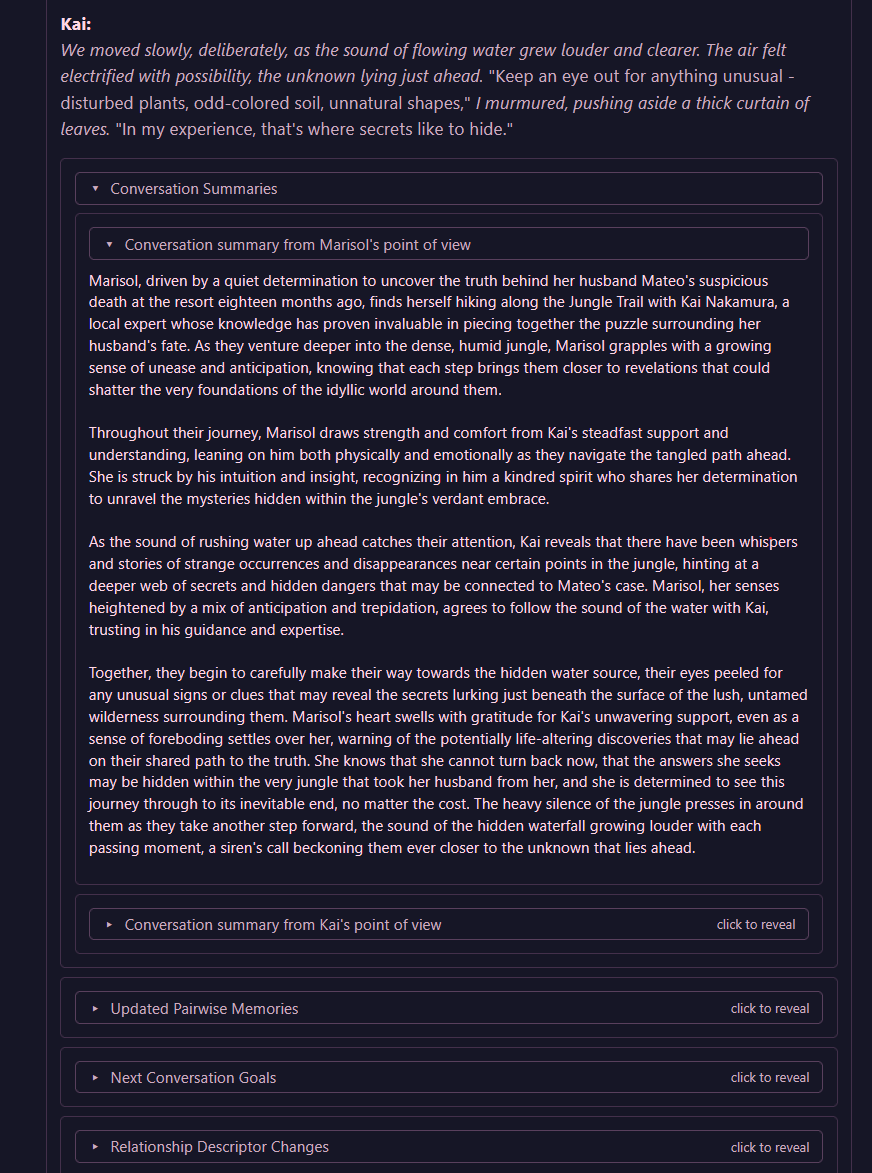
View a history of all conversations via the conversation log, and see the memories they generated.
Pause
Use the pause button to pause automatic next speaker selection. This allows you to take granular control of the chat, even if you aren't taking part in it. Choose who speaks next, edit/delete messages, generate images, set character instructions, add/remove characters, and more. There's also a setting you can enable to always pause at NPC chat start if you prefer to start every NPC chat in hands-on mode.
Set Instructions
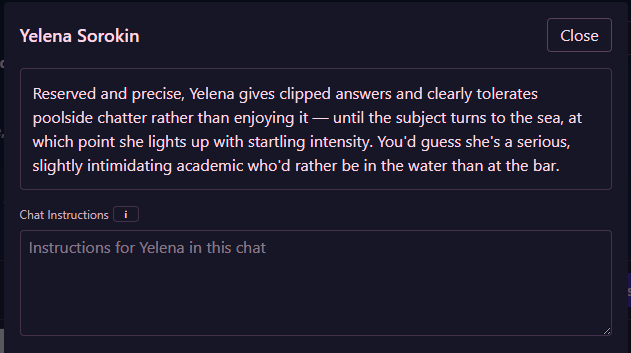
Click a character card on the chat's left pane to open character chat settings, where you can set instructions for the character, among other things. These instructions will be injected into their system prompt and is another way you can influence the direction of a conversation. Similarly, the chat settings modal (in the chat's top bar) has a place for instructions that will be given to all participants in the chat.